

Following our recent announcement about additional security measures, this email provides step-by-step instructions to help you set up multi-factor authentication (MFA) on your NDNA website account.
Multi-factor authentication adds an extra layer of protection by requiring a second verification step when signing in. This helps keep your account, personal information and financial details secure.
Please follow the instructions below to activate MFA on the NDNA main website.
What do you need to do?
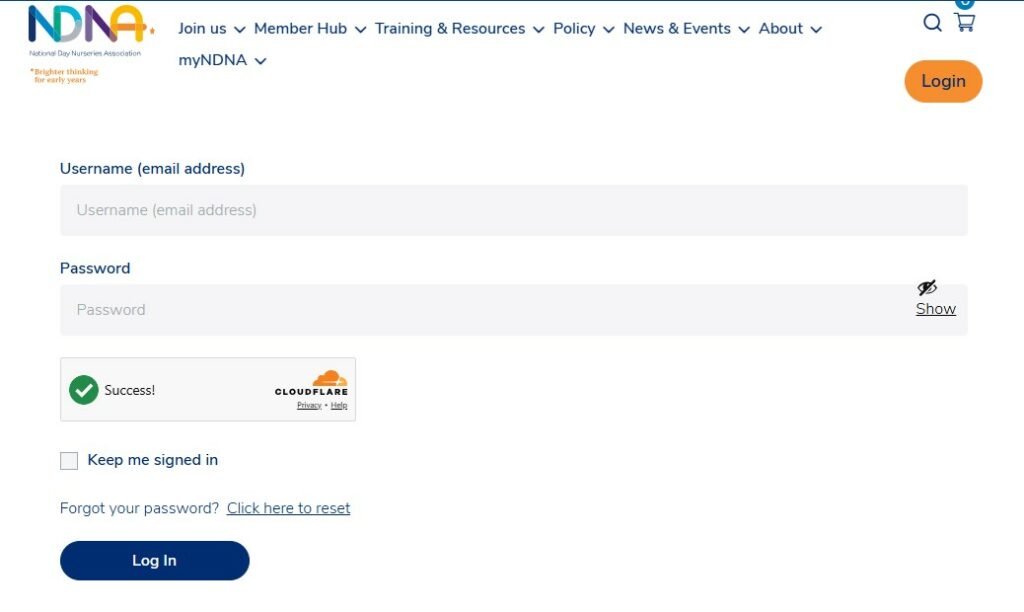
You will login as normal via the login page.
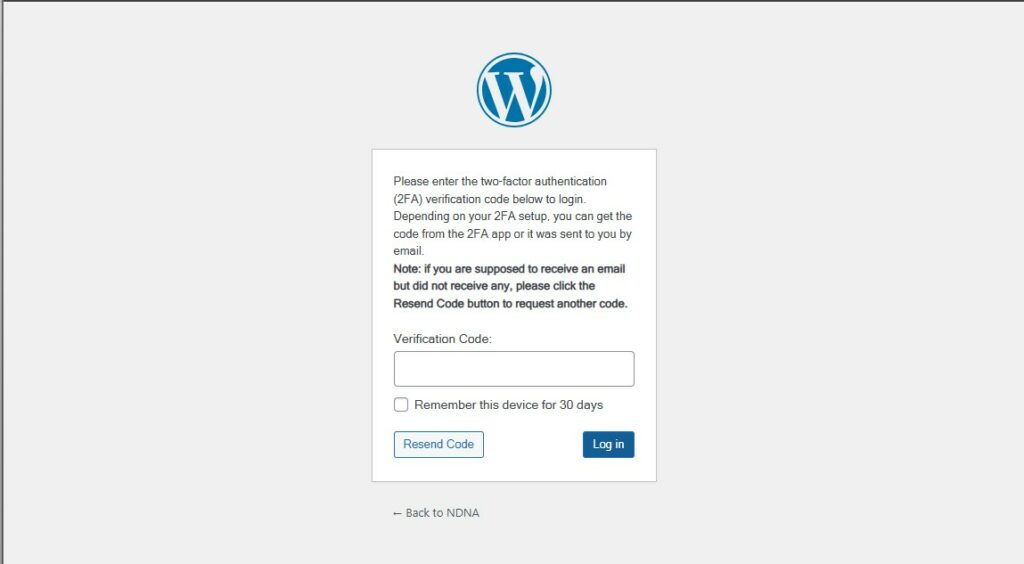
Afterwards you’ll see a text box to enter a verification code like below
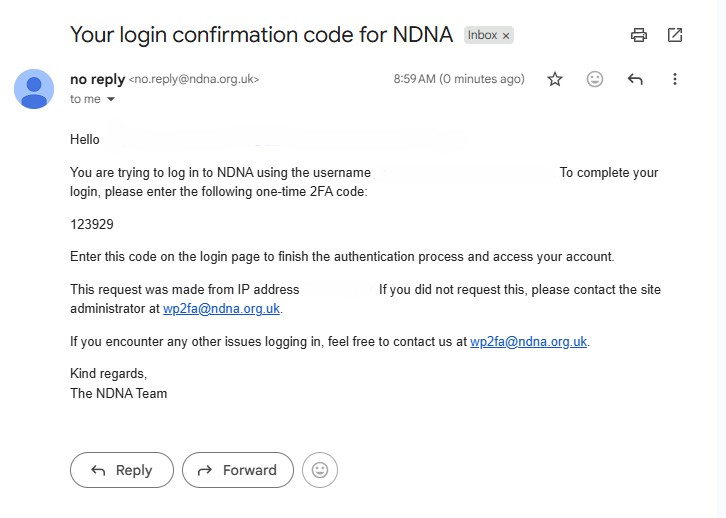
You then need to go to your email, and you will see a code like below. You need to copy this code. If you’ve received no code, then please click ‘Resend code’ above. If you still don’t receive a code, then please contact [email protected].
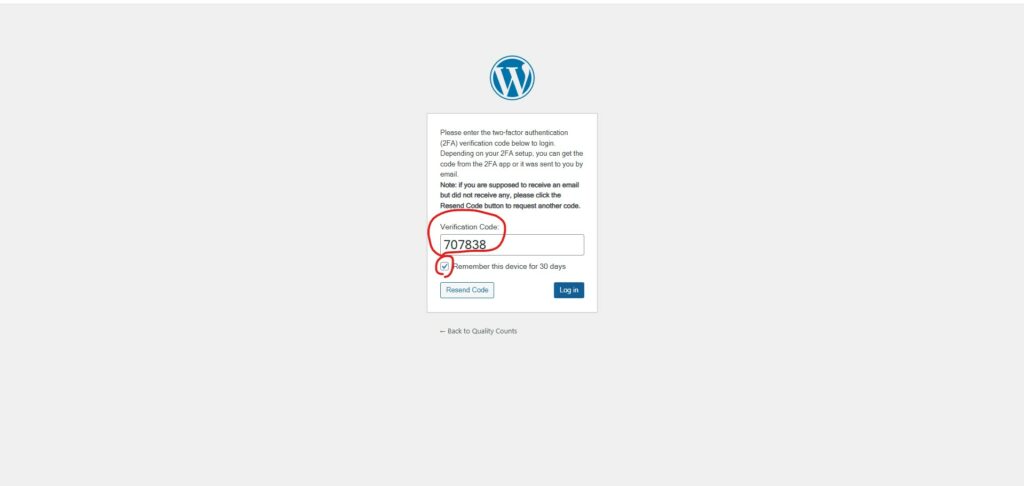
Now go back to your browser and the NDNA tab you have open and paste the code in like below and click enter. You can also tick ‘remember me for 30 days’ if you don’t want to put the code in every time you login.
Lastly you’ll be redirected to the homepage and carry on as usual. If you have any issues, please contact
[email protected].